Quick answer: Yes, every AirPods model works with Android as a regular Bluetooth headset. On your phone, open Settings > Connected devices > Pair new device (on Samsung, Settings > Connections > Bluetooth). Open the AirPods case with both earbuds inside and hold the setup button on the back until the light flashes white. On AirPods 4, AirPods 5 and AirPods Pro 3, double-tap the front of the case instead. Then tap your AirPods in the list.

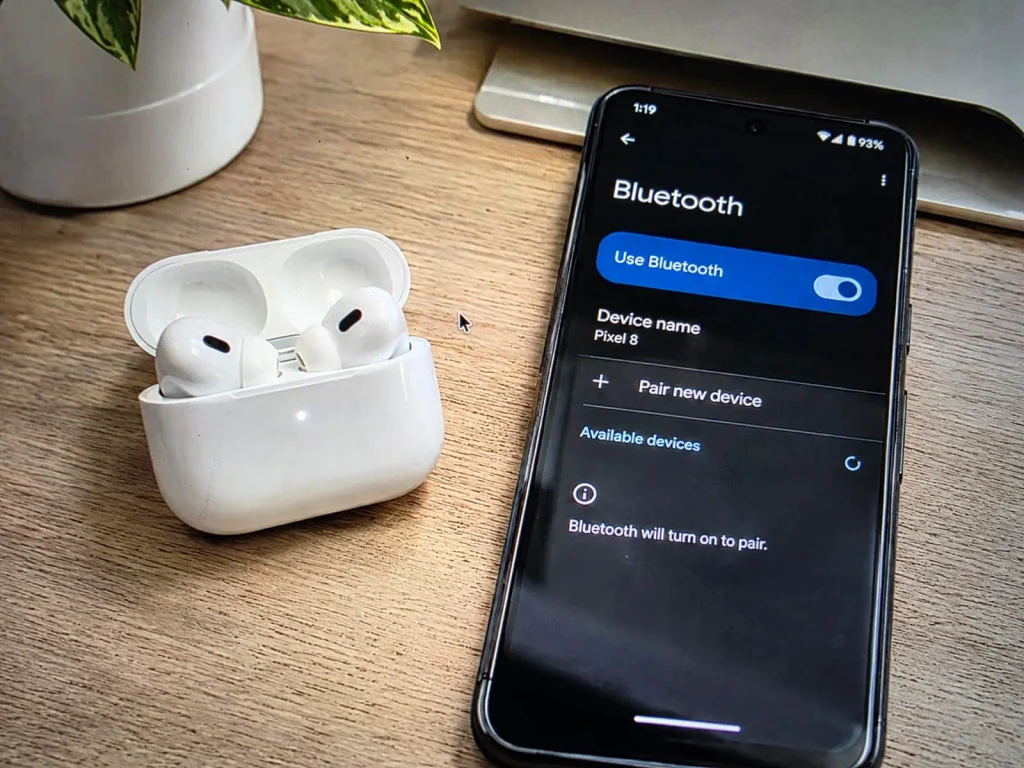
So, do AirPods work with Android? Yes. Apple designs them around the iPhone, but they’re still Bluetooth earbuds, and any Android phone can pair with them. That includes Samsung Galaxy, Google Pixel, Motorola and OnePlus phones.
You do give a few things up. Apple’s own support guide says you can listen and talk on a non-Apple device, but Siri won’t work. Battery pop-ups, ear detection and firmware updates need workarounds too.
Below you’ll find how to pair AirPods to Android for every model, what still works, and how to fix the low-volume problem a lot of people run into.
Step-by-Step: How to Connect AirPods to Android
Pairing takes about a minute. Charge the case first, and keep both AirPods inside it until pairing is done.
Step 1: Open Bluetooth pairing on your Android phone
Menus differ a little by brand, so use the path for your phone:
- Google Pixel, Motorola and most stock Android phones: Open Settings > Connected devices > Pair new device. Your phone starts scanning right away.
- Samsung Galaxy: Open Settings > Connections > Bluetooth and turn Bluetooth on. Stay on this screen while it scans.
Can’t find it? Type “Bluetooth” into the search bar at the top of Settings.


Step 2: Put your AirPods in pairing mode
This is the step that trips people up, because Apple removed the back button on newer cases. Find your model below:
- AirPods 1, 2 and 3, and AirPods Pro 1 and 2: Open the lid with both AirPods inside. Press and hold the round setup button on the back of the case for about 5 seconds, until the status light flashes white.
- AirPods 4 (both models), AirPods 5 and AirPods Pro 3: These cases have no setup button. Open the lid, hold the case near your phone, and double-tap the front of the case. Stop when the light flashes white.
- AirPods Max: Press and hold the listening mode button (the oval button on the right ear cup, once called the noise control button) for about 5 seconds, until the status light flashes white.


Step 3: Tap your AirPods on your phone
Your AirPods will show up under Available devices. Tap them, then tap Pair if your phone asks.
That’s all it takes. Once you pair AirPods with Android this way, they’ll reconnect on their own the next time you take them out of the case.


Do AirPods Work With Android? What Works and What You Lose
Can you use AirPods with Android without losing the basics? Yes. Music, calls and noise control work as soon as you pair. The extras that rely on Apple’s own software either need a helper app or don’t work at all.
| Feature | Works on Android? | What to know |
|---|---|---|
| Music and calls | Yes | Streams over Bluetooth using the AAC or SBC codec, depending on your phone. |
| Noise Cancellation and Transparency | Yes | Press and hold the stem (AirPods Pro, AirPods 4 with ANC) or the listening mode button (AirPods Max). |
| Play, pause and skip | Yes | Press the stem on AirPods 3, 4 and Pro. On AirPods 1 and 2, double-tap works, but you can’t easily change what it does from Android. |
| Swipe volume (AirPods Pro 2 and 3) | Yes | Swipe up or down on the stem. |
| Separate battery levels for each bud and the case | App needed | Android’s Bluetooth menu doesn’t show them. CAPod or MaterialPods can. |
| Ear detection (auto-pause) | App needed | Available as a paid feature in CAPod and MaterialPods. |
| Siri | No | Apple confirms Siri isn’t available on non-Apple devices. An app like Assistant Trigger can open Google’s assistant from a stem press. |
| Personalized Spatial Audio and head tracking | No | Apple’s version needs an iPhone, iPad or Mac. |
| Automatic switching and firmware updates | No | Updates install only through a nearby Apple device. |
| Find My | Partly | If the AirPods are linked to your Apple Account, you can see them at iCloud.com/find in any Android browser. |
How to Check AirPods Battery on Android


Android’s Bluetooth menu won’t show separate battery levels for the left bud, right bud and case. Your AirPods still broadcast that data over Bluetooth Low Energy, though, and a couple of apps built for AirPods on Android can read it.
- CAPod: An open-source, ad-free app from the developer of SD Maid, available on Google Play and GitHub. The free version shows battery levels for each earbud and the case. A paid Pro upgrade adds a pop-up when you open the case, a home screen widget, auto-connect, and ear detection that pauses music when you take an AirPod out.
- MaterialPods: Shows an iPhone-style battery pop-up when you open the case, plus a home screen widget. Ear detection and a Google Assistant shortcut are Pro features.
Both apps ask for Bluetooth and location permissions. Android requires location access for Bluetooth scanning; it doesn’t mean the app is tracking you. Expect ear detection to lag slightly behind what you’d get on an iPhone.
Using the Official Beats App for Android (Better Than AirPods?)

If you’re shopping for AirPods for Android, Beats are often the smarter Apple-made pick. Apple owns Beats and publishes an official Beats app for Android on Google Play. AirPods have no Android app at all.
The Beats app for Android works with models like Beats Studio Buds+, Beats Fit Pro, Beats Solo Buds and Beats Studio Pro. It gives you:
- One-touch pairing: A pop-up appears when you open the case near your phone.
- Battery widgets: See the charge for each earbud and the case on your home screen.
- Custom controls: Change what the press-and-hold gesture does, such as switching listening modes.
- Firmware updates: Update your Beats from your Android phone, no iPhone needed.
- Locate My Beats: See where your Beats last connected or disconnected on a map (requires location access).
Many recent Beats models also support Google Fast Pair and Google’s Find Hub. Note that the Beats app only works with Beats products, not AirPods.
How to Fix AirPods Low Volume on Android (Disable Absolute Volume)

A common complaint after people learn how to connect AirPods to Android: the volume tops out too low. The usual cause is Android’s absolute volume feature, which ties your phone’s volume slider to the AirPods’ own volume. On some phones, that link keeps the maximum lower than it should be. Turning it off lets each device keep its own level.
- Turn on Developer options. Open Settings > About phone and tap Build number seven times. On Samsung, it’s under Settings > About phone > Software information > Build number. Enter your PIN if asked.
- Open Developer options. On Pixel, go to Settings > System > Developer options. On Samsung, it’s at the very bottom of the main Settings list.
- Switch on “Disable absolute volume.” It’s usually in the Networking section. Yes, you turn the switch on to turn the feature off.
- Reconnect your AirPods. Put them back in the case, close the lid for a few seconds, then put them in again. If nothing changes, restart your phone.
Can’t find the setting? Type “absolute volume” into the Settings search bar. The name and location vary by phone, and some recent Android builds don’t show it. On Samsung, also try toggling Media volume sync under Settings > Connections > Bluetooth > Advanced settings, and test which position sounds louder.
Frequently Asked Questions (FAQ)
Do AirPods work with Android phones?
Yes. Every AirPods model, including AirPods Pro and AirPods Max, works with Android as a standard Bluetooth headset. Music, calls, Noise Cancellation, Transparency and stem controls all work. Siri, automatic switching and firmware updates don’t.
Can AirPods connect to Android and iPhone at the same time?
No. AirPods connect to one phone at a time. If you’ve paired them with both, open your Android phone’s Bluetooth settings and tap your AirPods to move them over. If they don’t switch, turn off Bluetooth on the iPhone first.
Can you connect AirPods to Android and see the battery life?
Not for each earbud on its own. Android’s Bluetooth menu doesn’t show separate levels for the left bud, right bud and case. A free app like CAPod or MaterialPods fills that gap.
How do I fix low AirPods volume on Android?
Turn on Developer options by tapping Build number seven times in Settings > About phone. Then open Developer options and switch on “Disable absolute volume.” Reconnect your AirPods and turn the volume up.
How do I switch between Noise Cancellation and Transparency on Android?
On AirPods Pro or AirPods 4 with Active Noise Cancellation, press and hold the stem of either AirPod until you hear a chime. Each press moves to the next listening mode. On AirPods Max, press the listening mode button.
Can I track lost AirPods from an Android phone?
Yes, if your AirPods are already linked to an Apple Account. Open iCloud.com/find in your Android browser, sign in, select All Devices, then choose your AirPods. You can’t set up Find My for new AirPods from Android alone.
Why is only one AirPod playing sound on my Android phone?
Put both AirPods in the case and let them charge for a few minutes. If one still won’t play, forget the AirPods in your Bluetooth settings and reset them. Close the lid for 30 seconds, then open it. On AirPods 1–3 and AirPods Pro 1–2, hold the setup button for about 15 seconds. On AirPods 4 and AirPods Pro 3, double-tap the front of the case three times, waiting for the light to change between taps. When the light flashes amber, then white, pair them again.